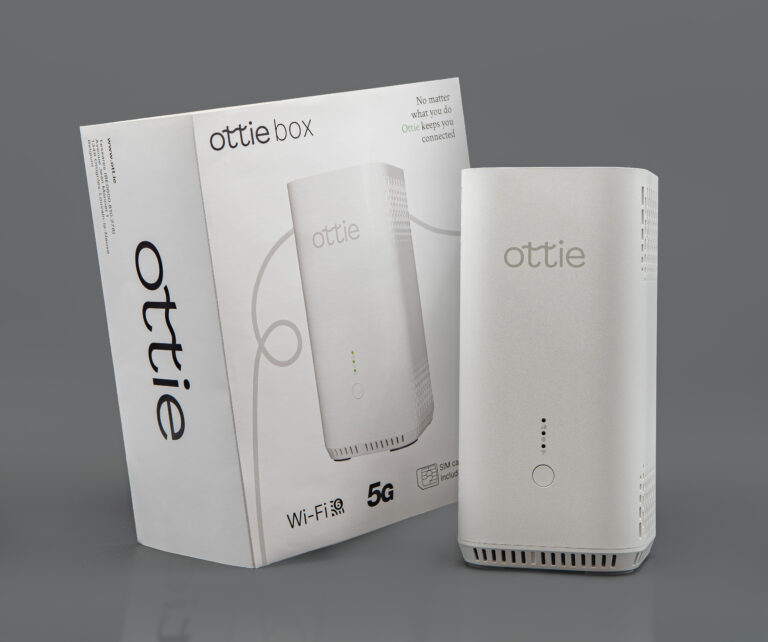
Welcome to the Ottie community!
You’ll soon receive, or have recently received, your Ottie Box, and we’ve created a tutorial video to guide you through the setup process.
Ready for the installation? It will only take a few minutes.
Play Video
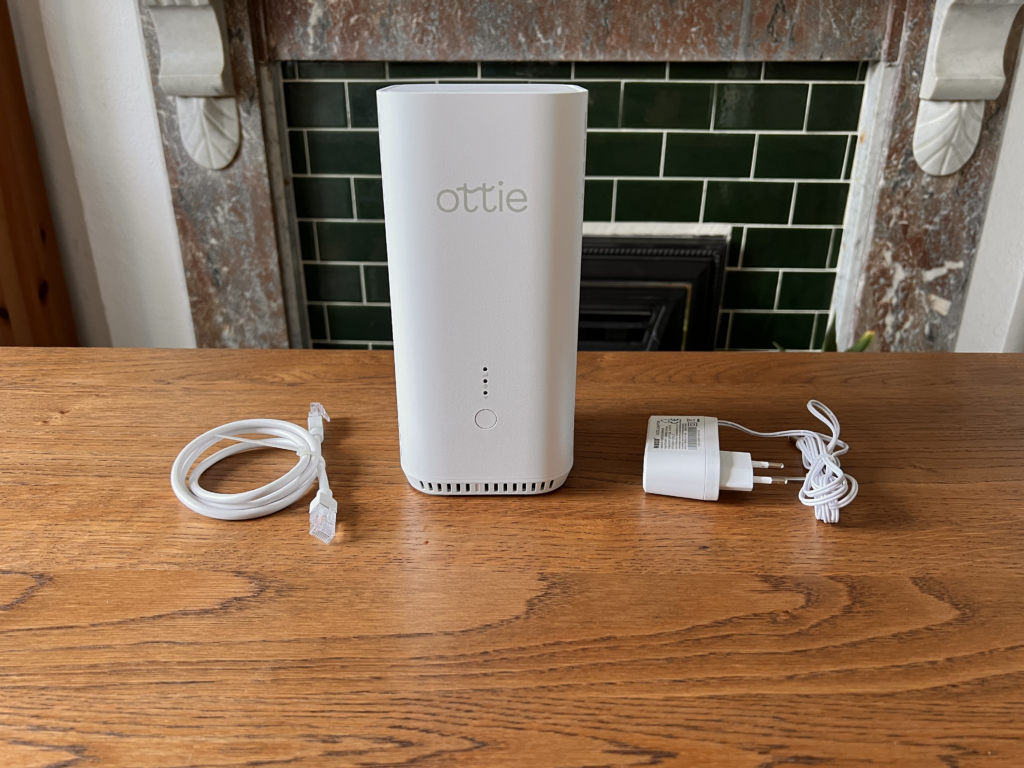
Contents of the Ottie Box:
The Ottie Box comes with:
- an Ethernet cable
- a power adapter
- and the Ottie Box itself
Installation Steps:
- Unbox Ottie, remove packing materials and locate the accessories.
- Ensure the Ottie Box is within Wi-Fi and 4G/5G network range.
- Connect the Ottie Box to a power source using the provided power adapter.
- Connect Ottie to your Wi-Fi router using the provided Ethernet cable or Wi-Fi.
- Press in the power button to switch on. you can see the LEDs on the front. When you see the LEDs flashing in an up and down pattern, it is time to continue with the onboarding process.
- Scan the QR codes on the box to download the Ottie app. The Ottie app will help“guide you through the setup.
- Once downloaded, allow Ottie to send you notifications.
- Enter the mobile number that was supplied during the registration process.
- Allow Ottie temporary access to your location. This will speed up the activation process.
- The app will need to access the Ottie box using a temporary Wi-Fi connection.
- You will also need to allow Ottie to find and connect to devices on your local network, namely the Ottie box.
- Click ‘Allow’ to continue.
- You will then be asked to select the local Wi-Fi network you wish Ottie to monitor and protect. Press Continue. Now add the password for your local Wi-Fi network. You will see a warning (that “Ottie, o-***” is not connected to the Internet. Select “Keep Trying Wi-Fi”
- The activation process can take a few minutes. When finished, Ottie will restart automatically.
Connecting Professional Devices:
Once Ottie restarts and you see the LEDs flashing up and down again, you can connect your professional devices using the Wi-Fi password found in the Ottie app.
Enjoy now your uninterrupted Internet connection!
Any question, reach out to us, we would be happy to help!